By Manuj Mehta · Updated
To back up Penso Notes, open Settings → Backup, link your Google Drive, and switch on Auto Backup with a daily, weekly or monthly frequency. To restore, sign in on the new phone, link the same Drive, open Manage Previous Backups and tap Restore.
Step by step
Link your Google Drive
Go to Settings → Backup and sign in with the Google account where backups should go. You'll see "Drive linked successfully".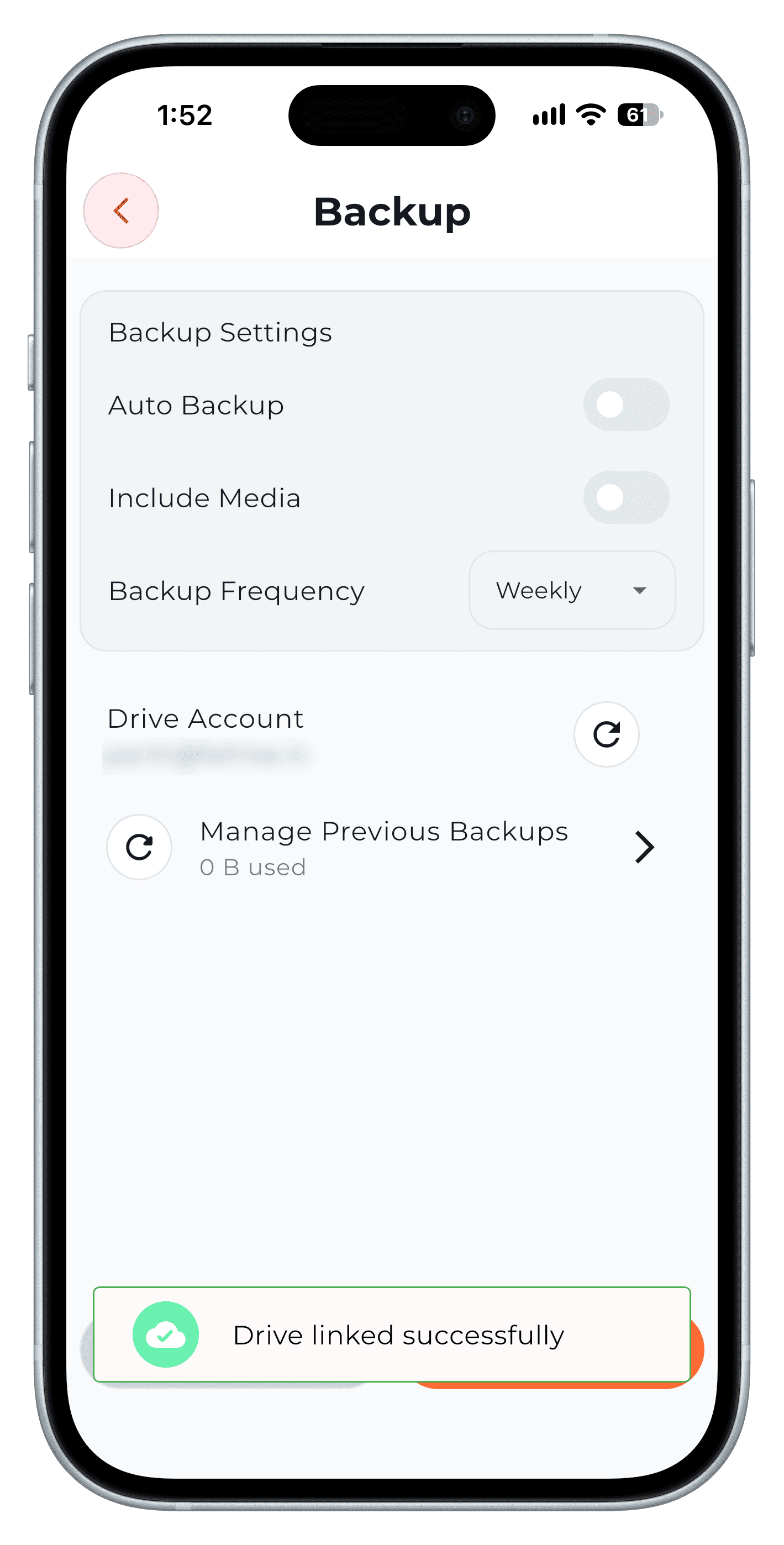
Step 1 Turn on Auto Backup
Switch on Auto Backup, choose a frequency, and decide whether to include media (photos, audio, drawings). Media makes backups bigger but complete.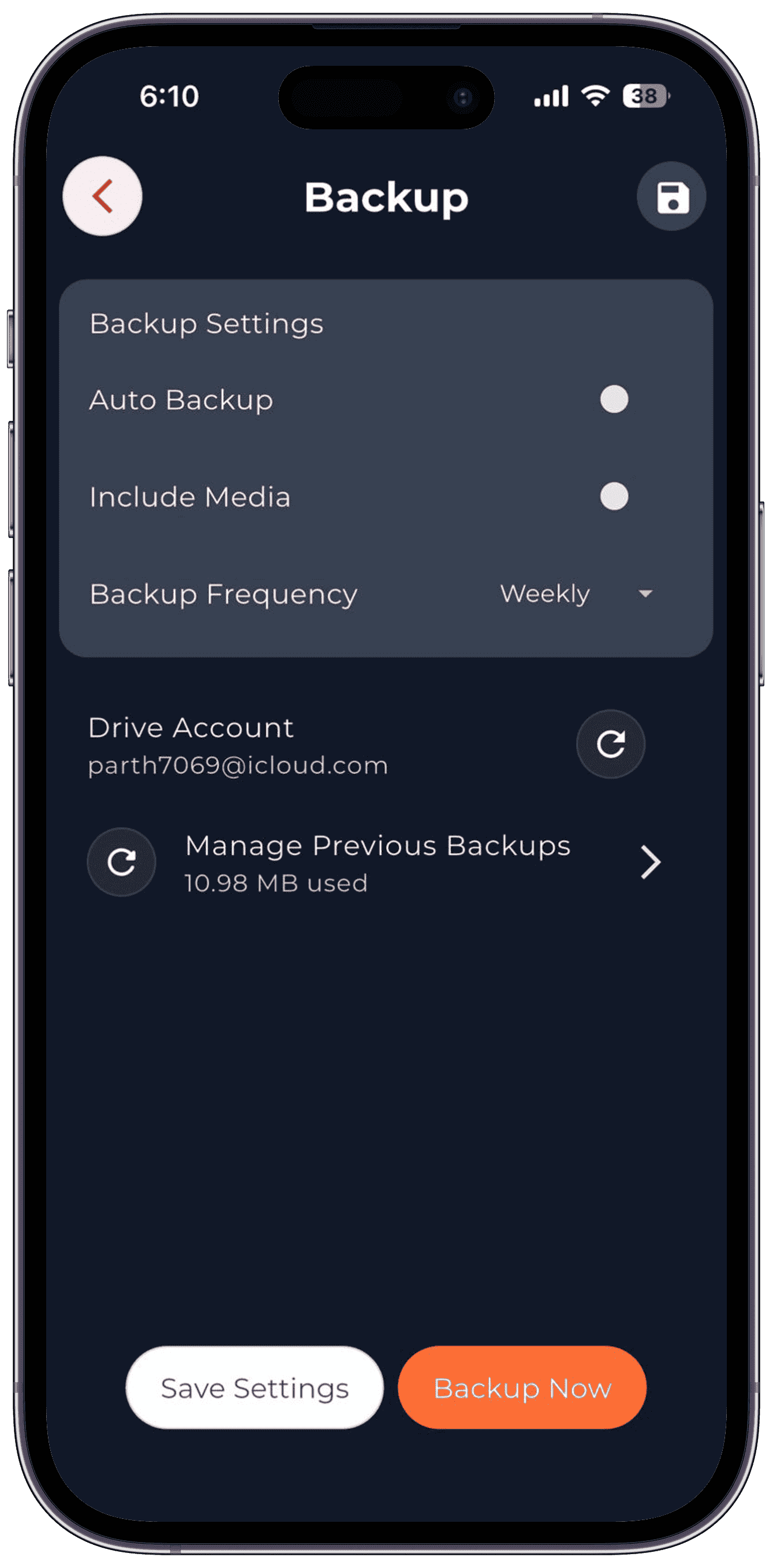
Step 2 Back up now before big changes
Tap Backup Now before you switch phones or reinstall. A progress bar shows the backup being saved.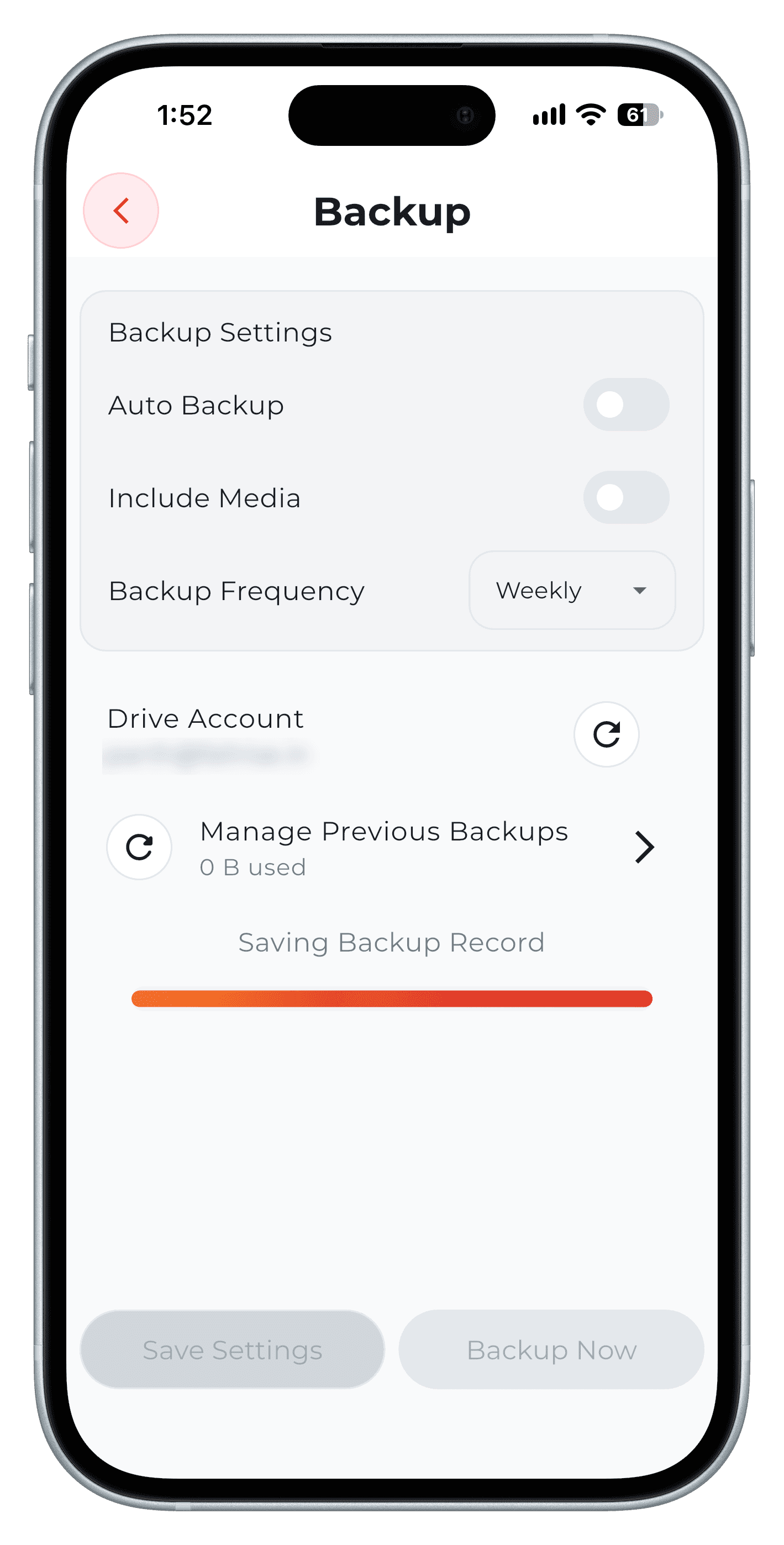
Step 3 Restore on a new phone
Install Penso, sign in, link the same Drive, open Manage Previous Backups and tap Restore on the backup you want. Each backup shows its time and size.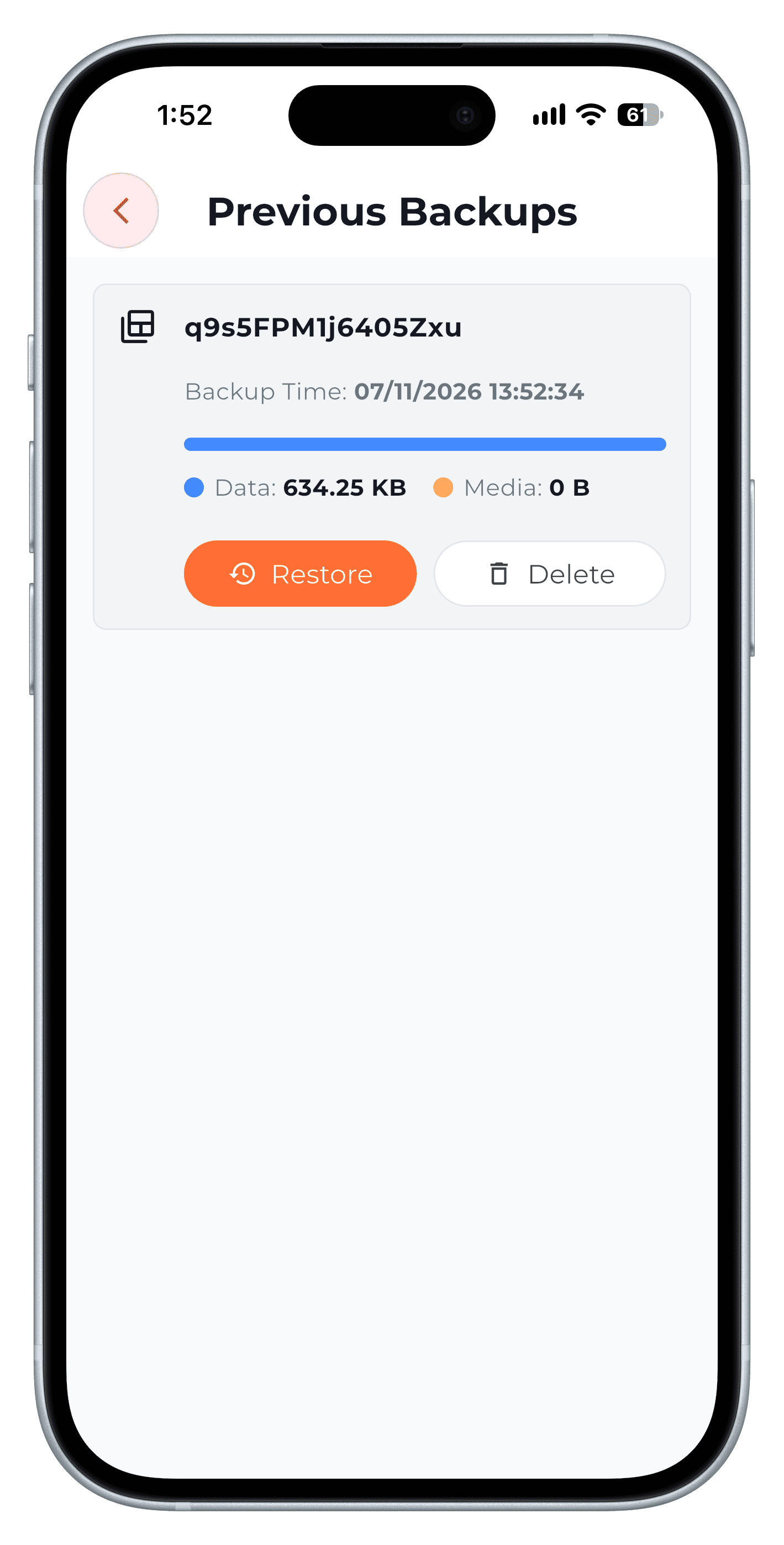
Step 4 Check it worked
You'll see "Backup restored successfully", and media downloads in the background.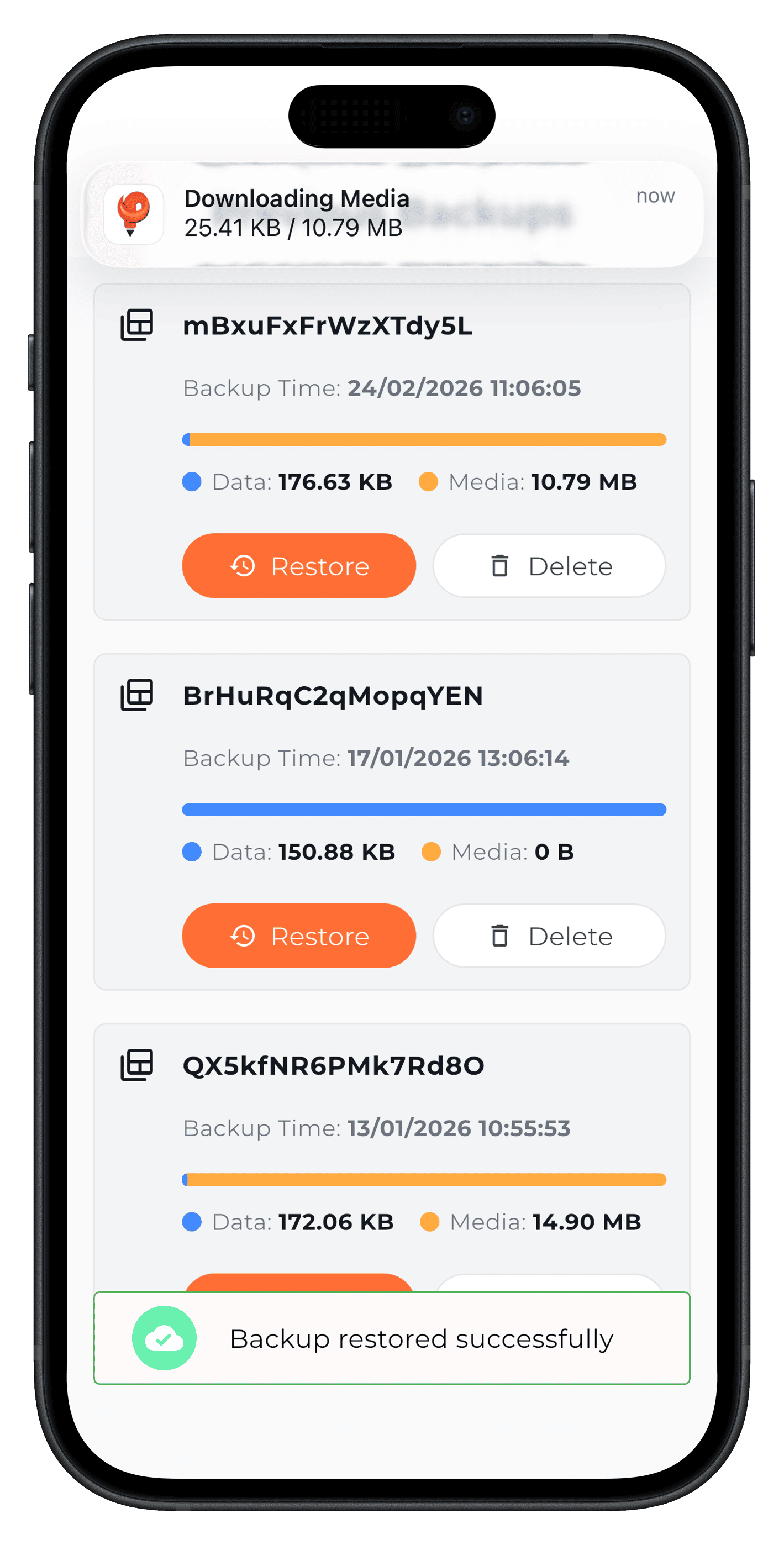
Step 5
Frequently asked questions
Where is my Penso backup stored?
In the Google Drive account you link. Penso doesn't keep its own copy of your journal.
How often should I back up?
Daily if you write every day, weekly otherwise. Always tap Backup Now before changing phones.
Does the backup include photos?
Only if Include Media is on. Turn it on for a complete backup.