By Manuj Mehta · Updated
To set up Penso Notes, sign in, start a guided Journey or a blank diary, pick a theme, add the home-screen widget and turn on Google Drive backup. That takes about five minutes, and after it writing is one tap from your home screen.
Step by step
Sign in
Continue with Google, Apple or email. Your account lets you restore backups and use Penso on more than one device.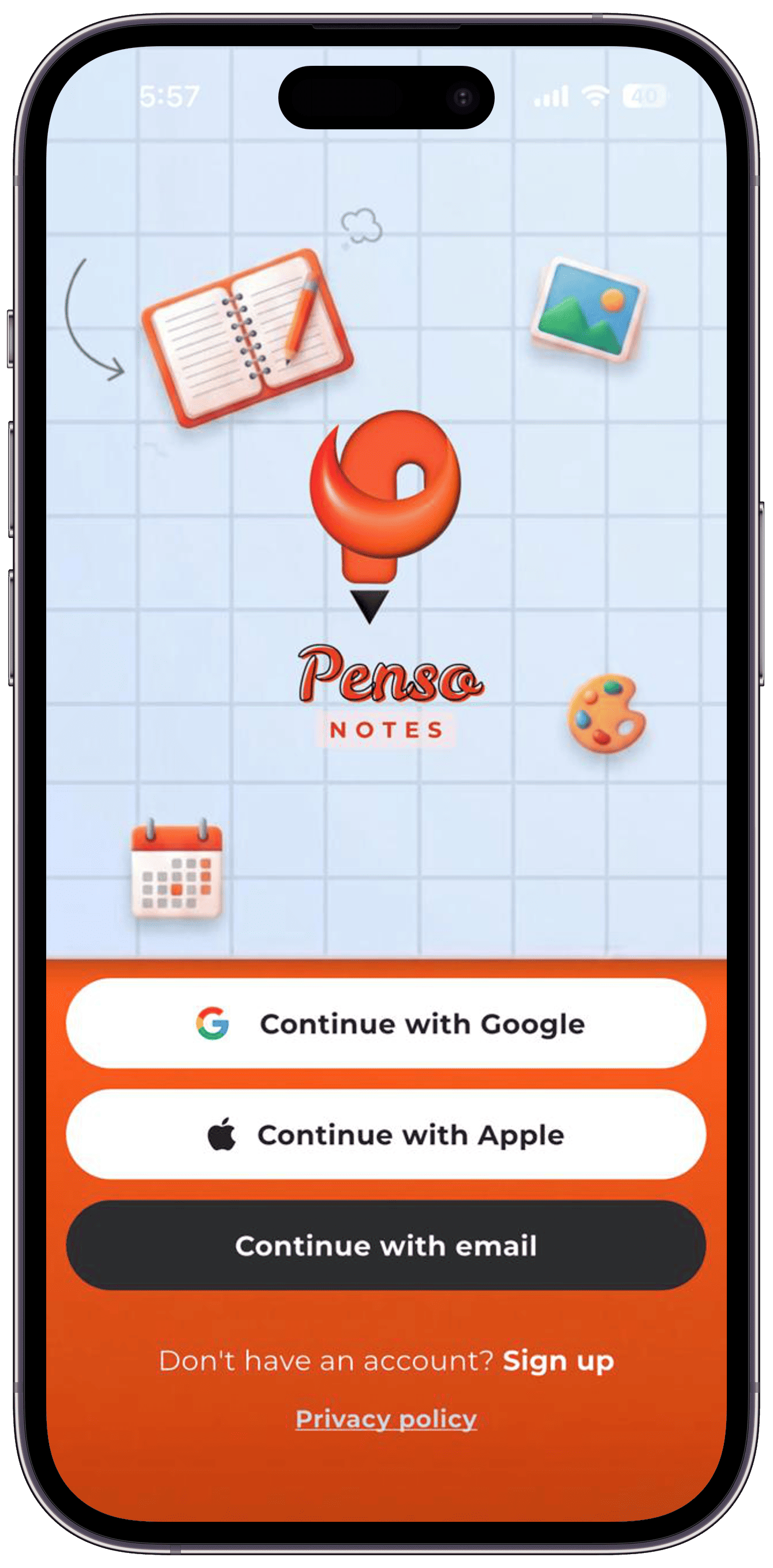
Step 1 Choose your first diary
Pick a Journey — Feel Calmer, Boost Productivity, Creative Spark or Capture Memories — for a prompt each day, or start a blank diary. You can add more diaries any time. See how Journeys work.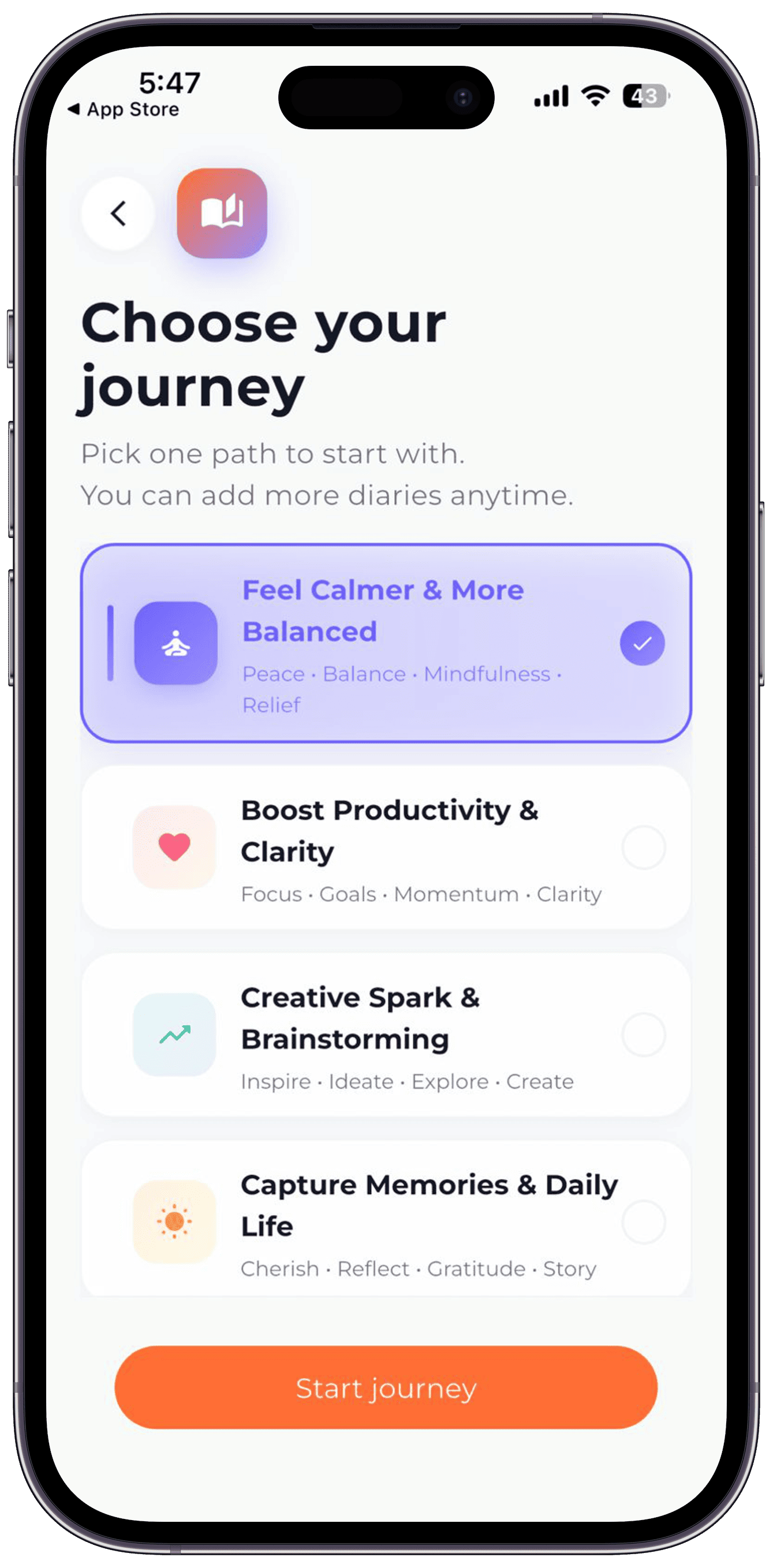
Step 2 Make it yours with a theme
Themes are set per diary, so a work log can be minimal and a personal journal cosy. Open the palette icon in any diary to switch.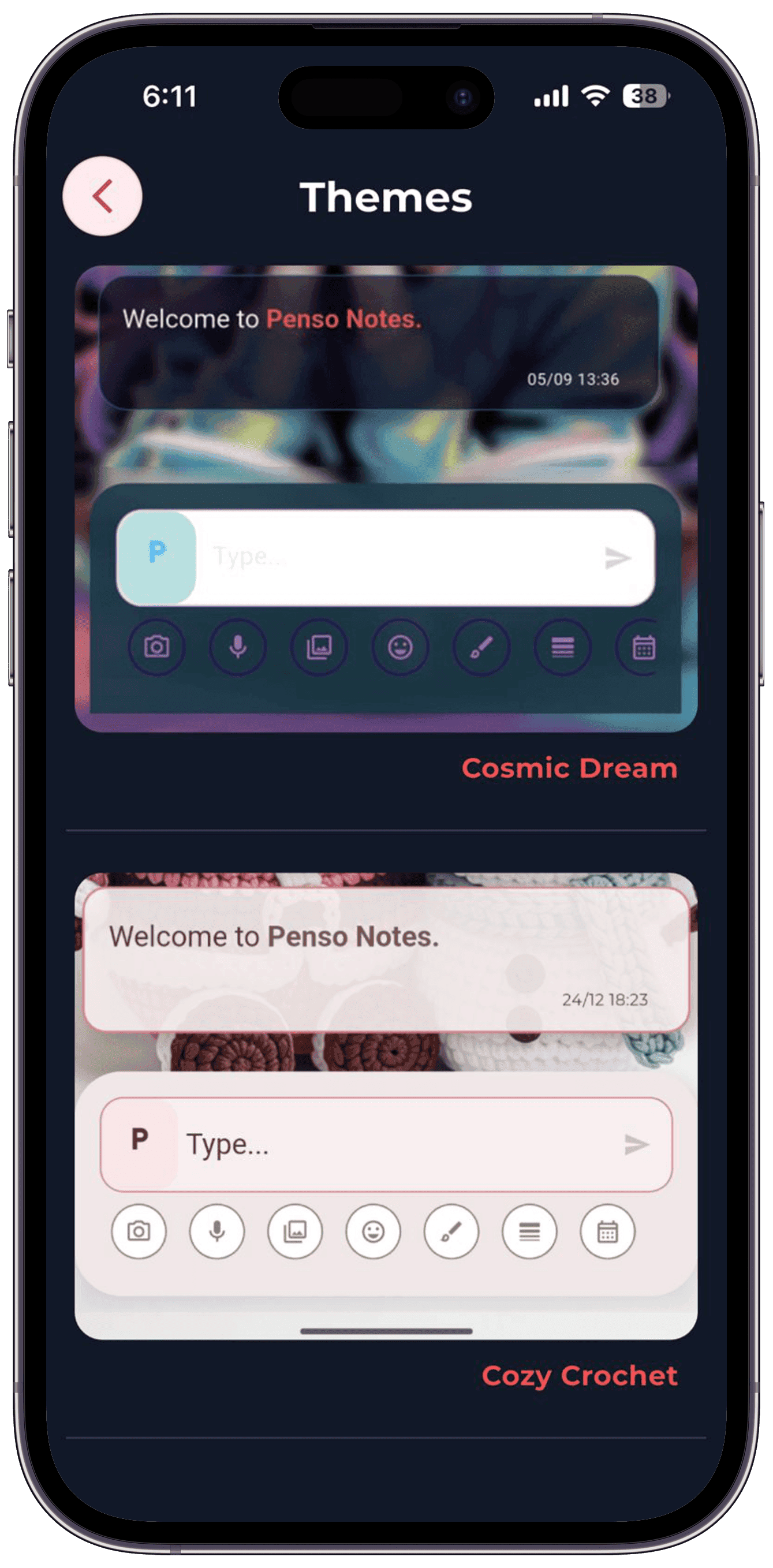
Step 3 Add the home-screen widget
Long-press your home screen, add the Penso Notes widget and pick a size. One tap opens your diary — capture becomes closer than your memory. More on widgets.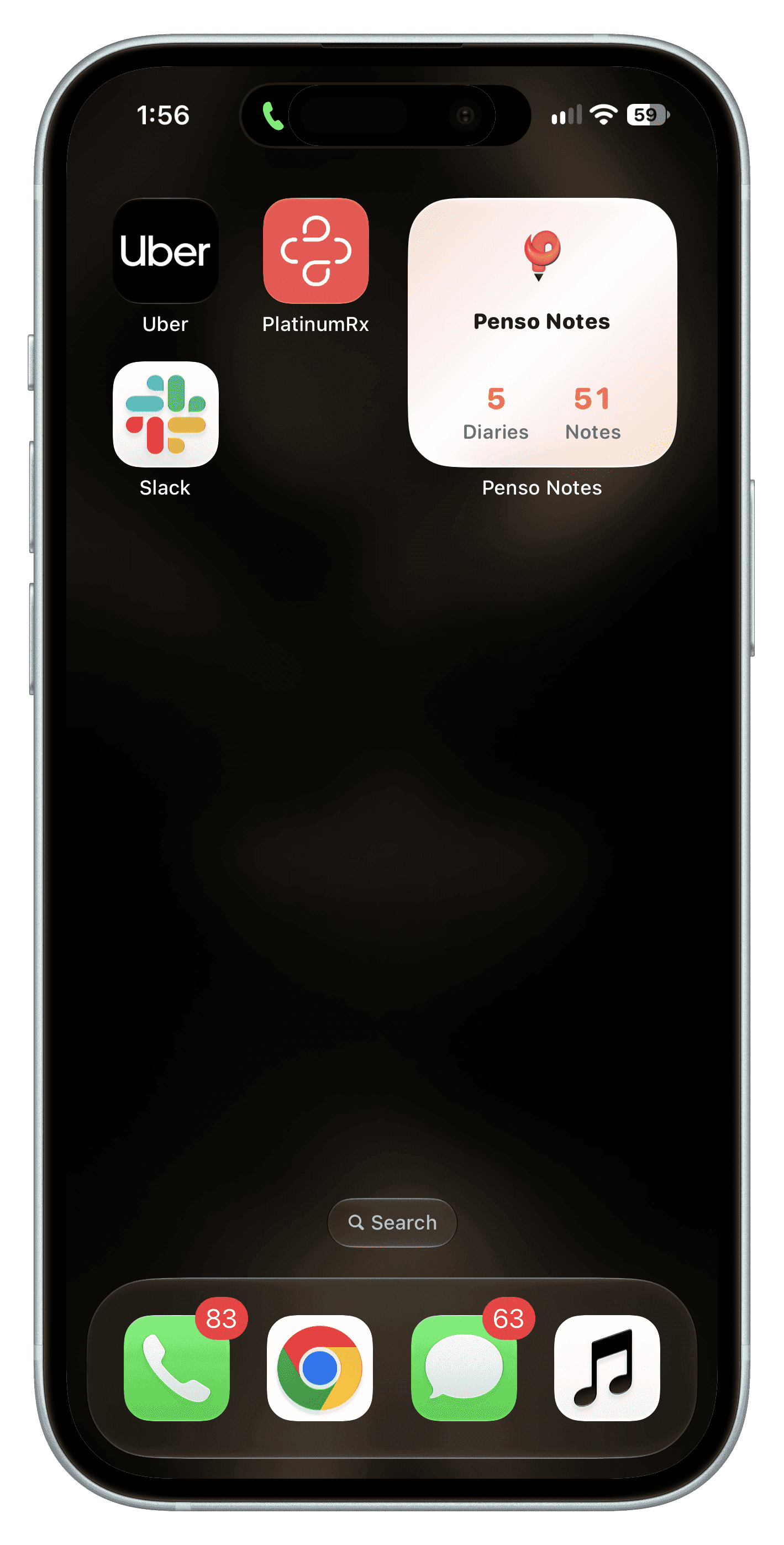
Step 4 Turn on backup
In Settings → Backup, link your own Google Drive and switch on Auto Backup. Your journal never sits in Penso's cloud. Backup and restore.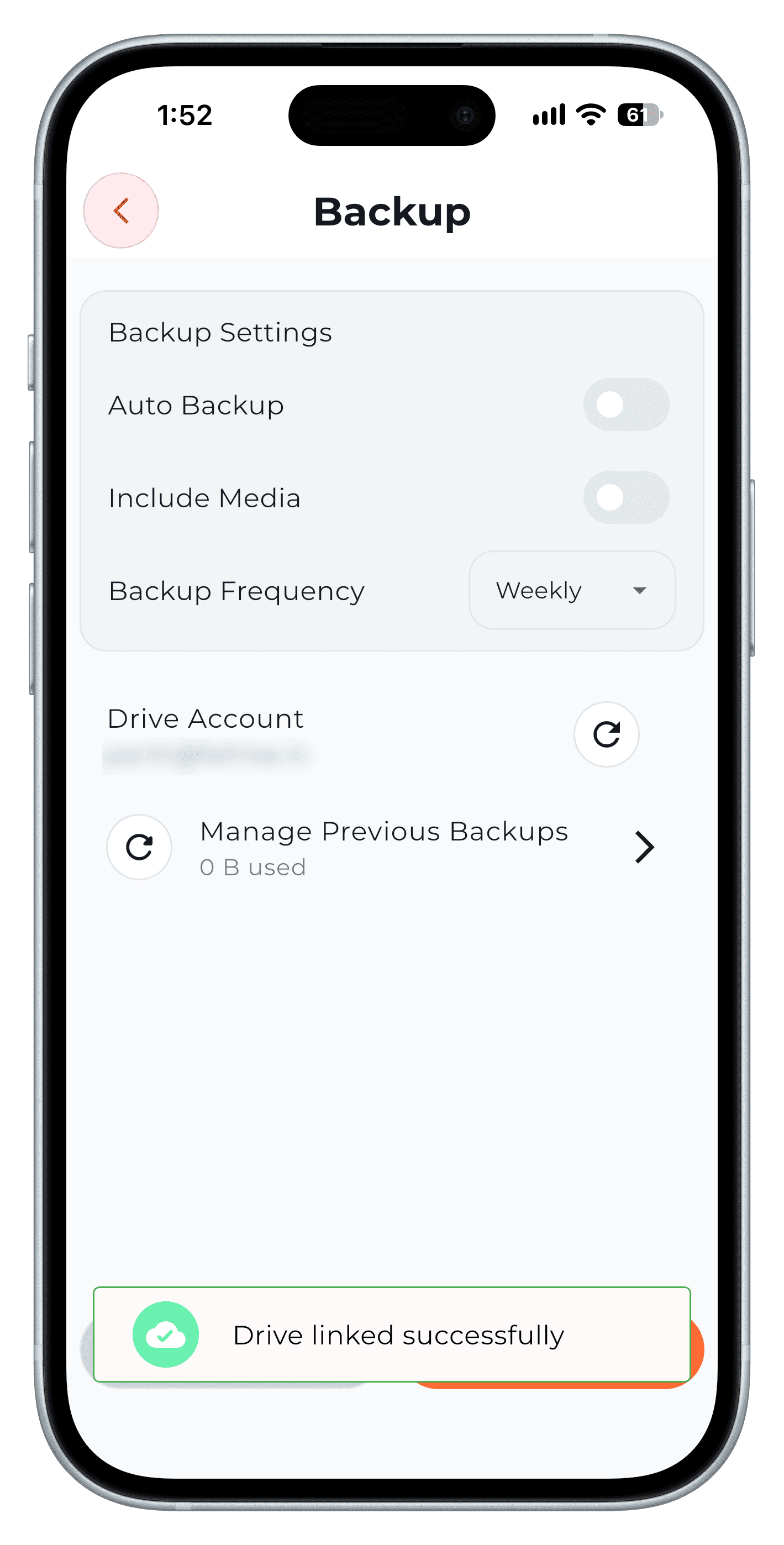
Step 5 Explore the rest at your own pace
The Discover checklist in the app shows which features you've tried — stickers, camera, calendar, reminders, search, export — so you can pick up one at a time.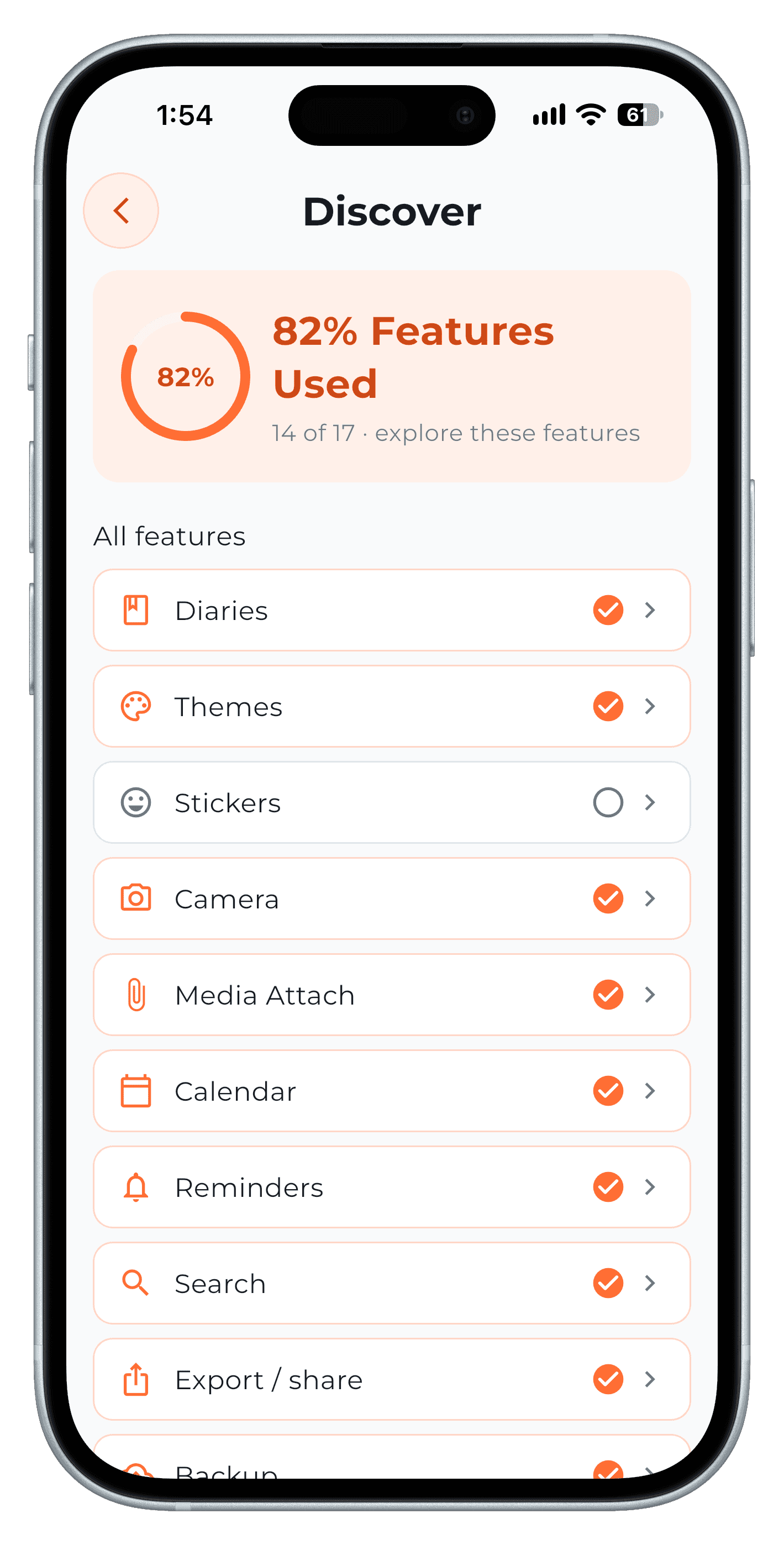
Step 6
Tips
- Start with one diary. Add a second only when the first has a clear job.
- Write your first entry now, even if it's "testing". An empty diary is the hardest one to open.
Frequently asked questions
Is Penso Notes free?
Yes. Penso Notes is free to download with no ads. Penso Pro adds extras such as Trackers, Analytics, shared diaries, voice-to-text and the desktop apps.
Do I need an account?
You sign in with Google, Apple or email. Your entries are stored on your device; the account is used for backup, sync and Pro.
Which devices does Penso run on?
iPhone and Android phones, plus Mac and Windows desktop apps with Penso Pro.