By Manuj Mehta · Updated
To draw in Penso, tap + in a diary and choose Draw. Use the pen, shapes and backgrounds, then save the sketch into your diary as an image — or as a sticker you can reuse. Stickers come in packs you download once and keep one tap away.
Step by step
Open the canvas and pick a background
Tap + in a diary and choose Draw. Pick a plain, dotted or image background — use a screenshot to circle what matters.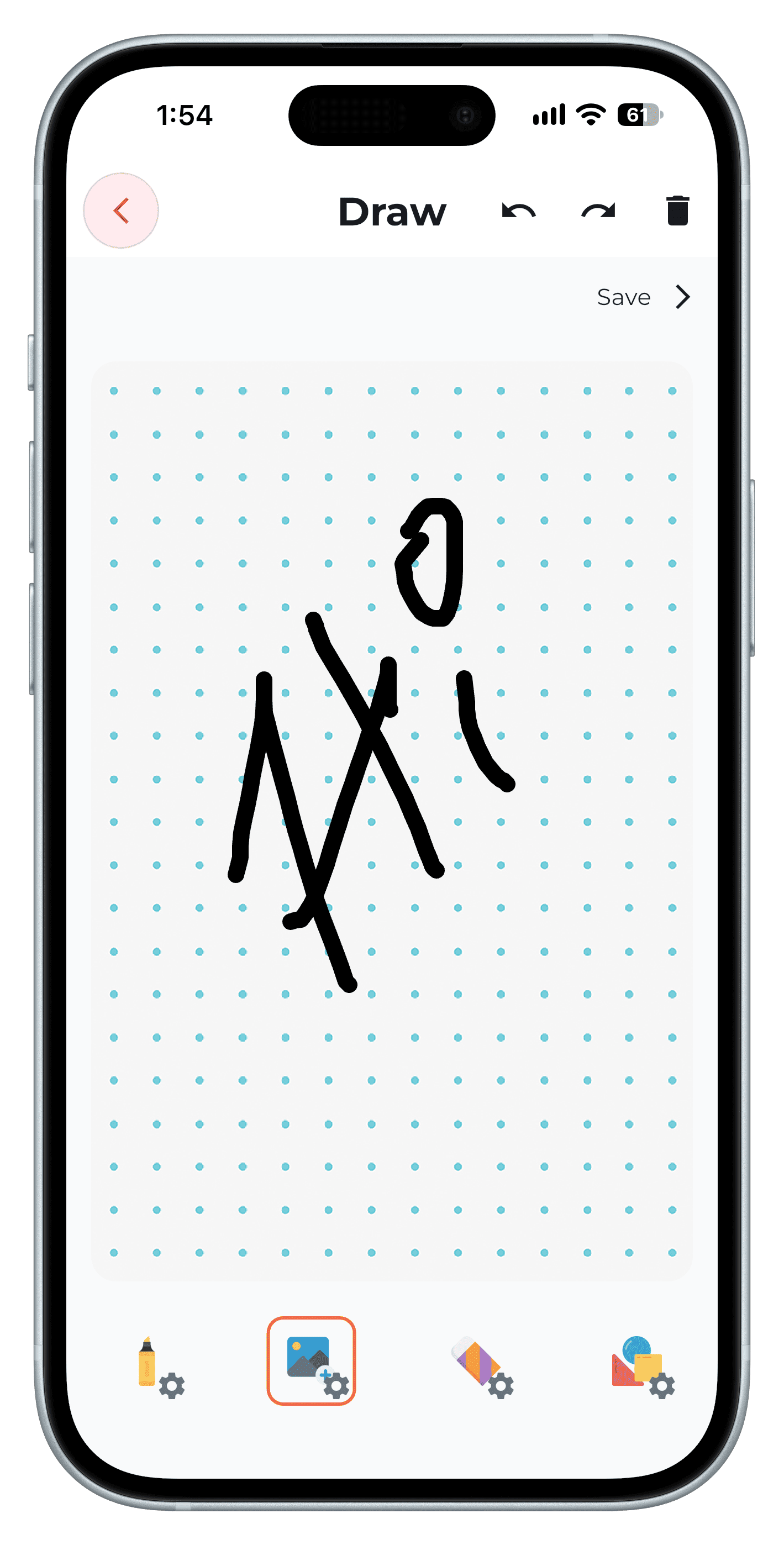
Step 1 Draw with pens and shapes
Change stroke width and colour, and add arrows, lines, rectangles and circles.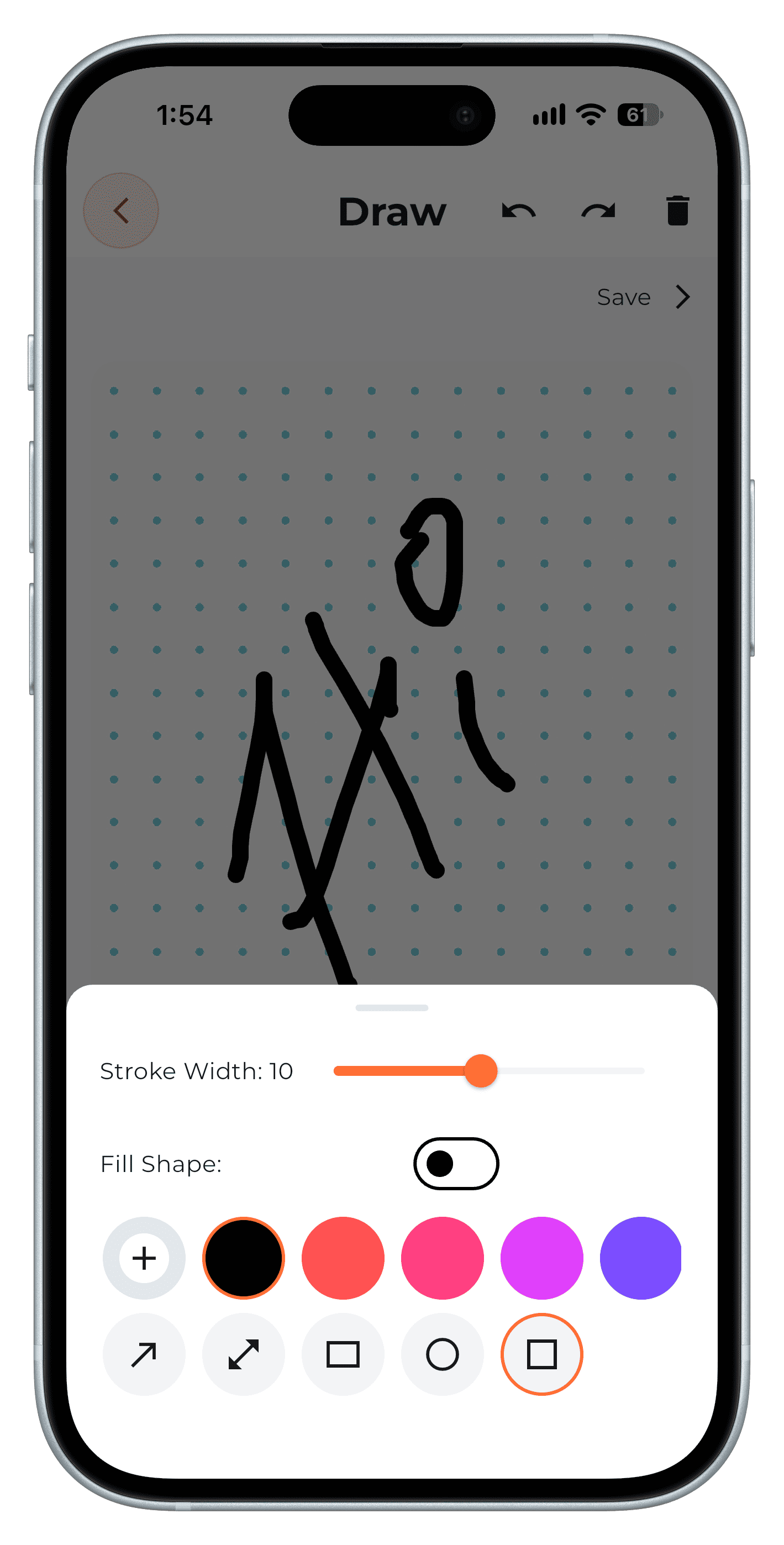
Step 2 Save as an image or a sticker
Tap Save. Save as Image adds it to the entry; Save as Sticker adds it to My Stickers for reuse.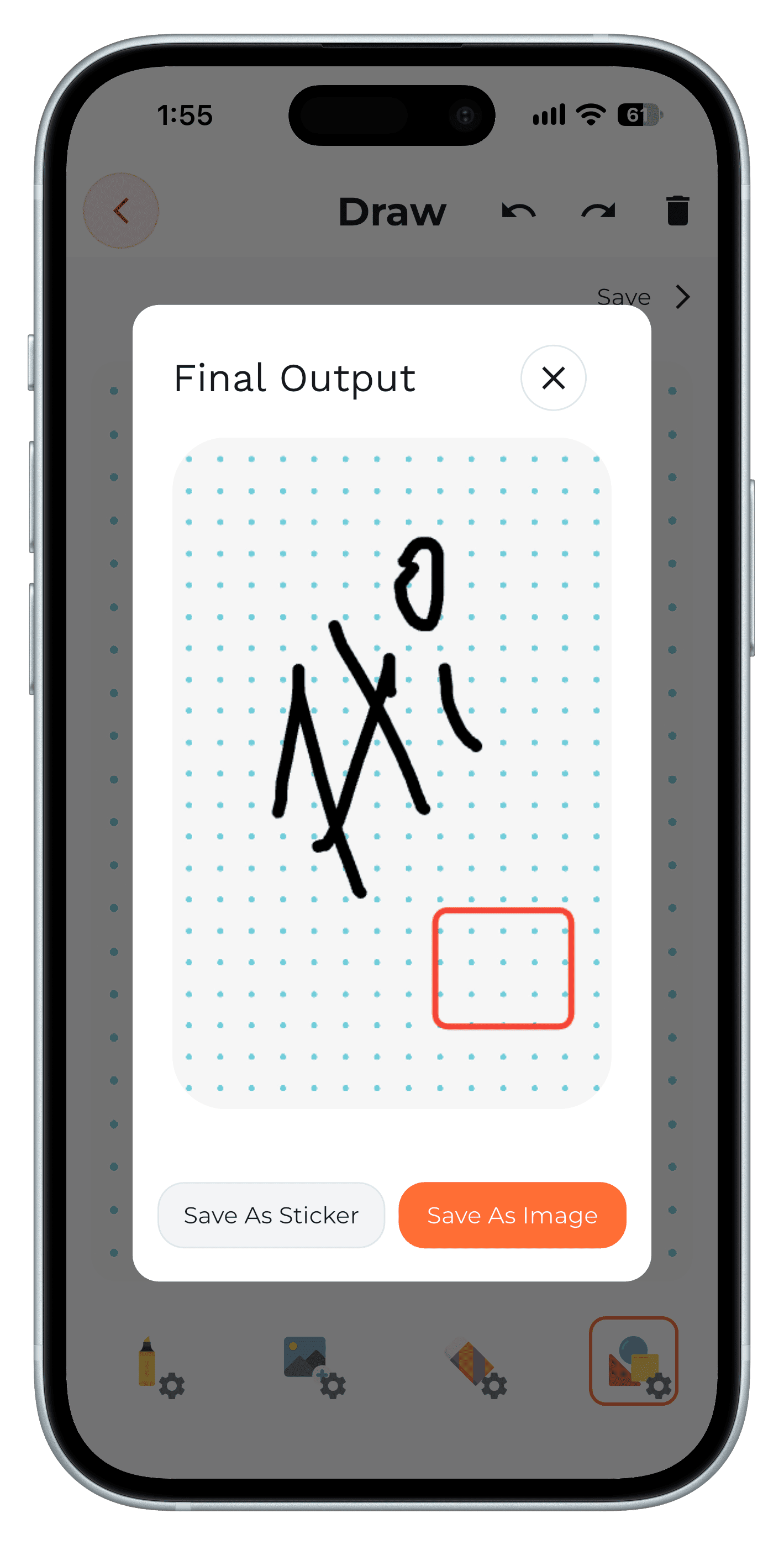
Step 3 Add sticker packs
Open stickers from the input bar, browse packs and tap Save to download one. Premium packs are marked PRO.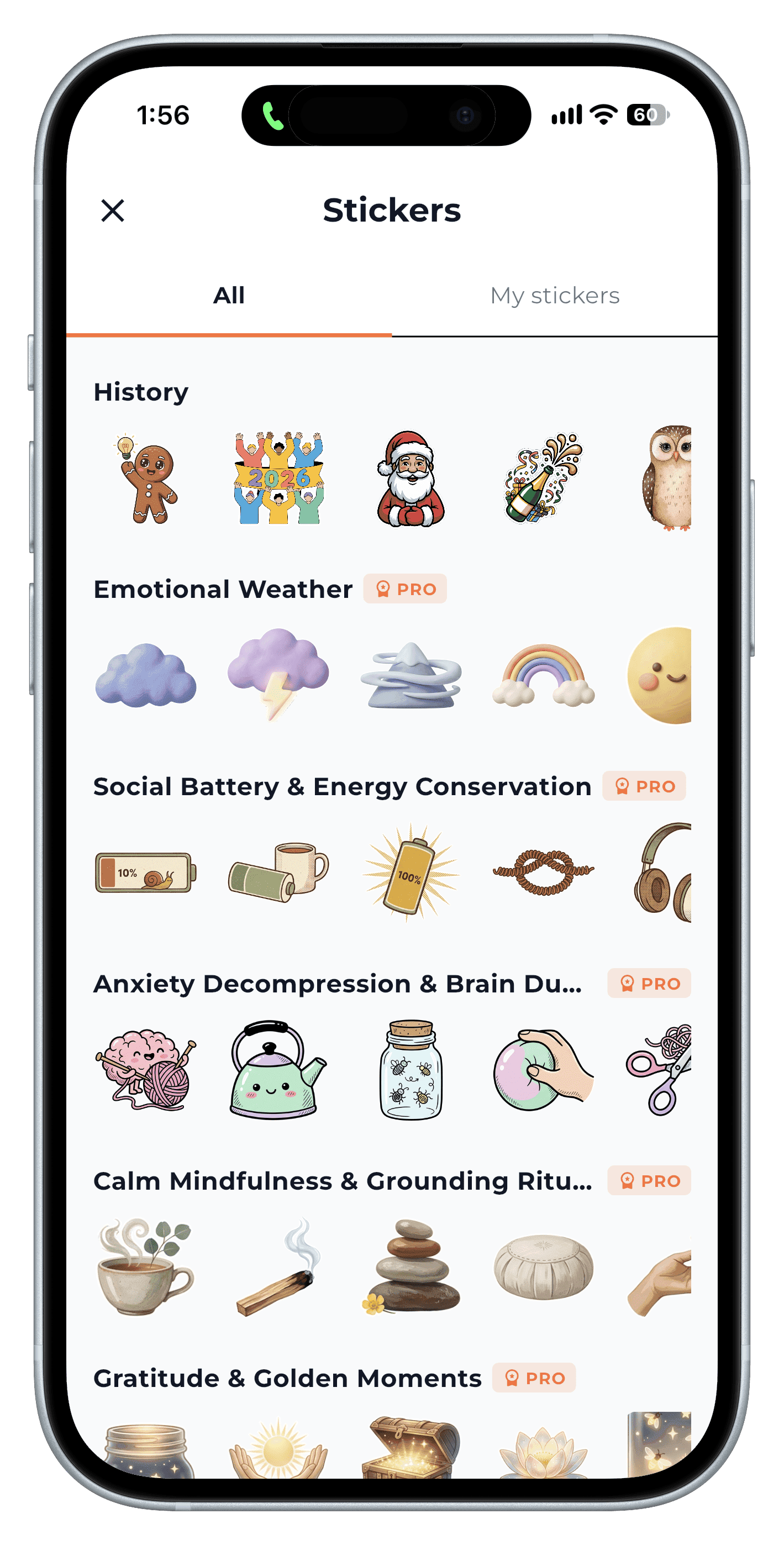
Step 4 Stick it on the day
Tap a sticker to add it. On low-energy days, a sticker keeps the streak going.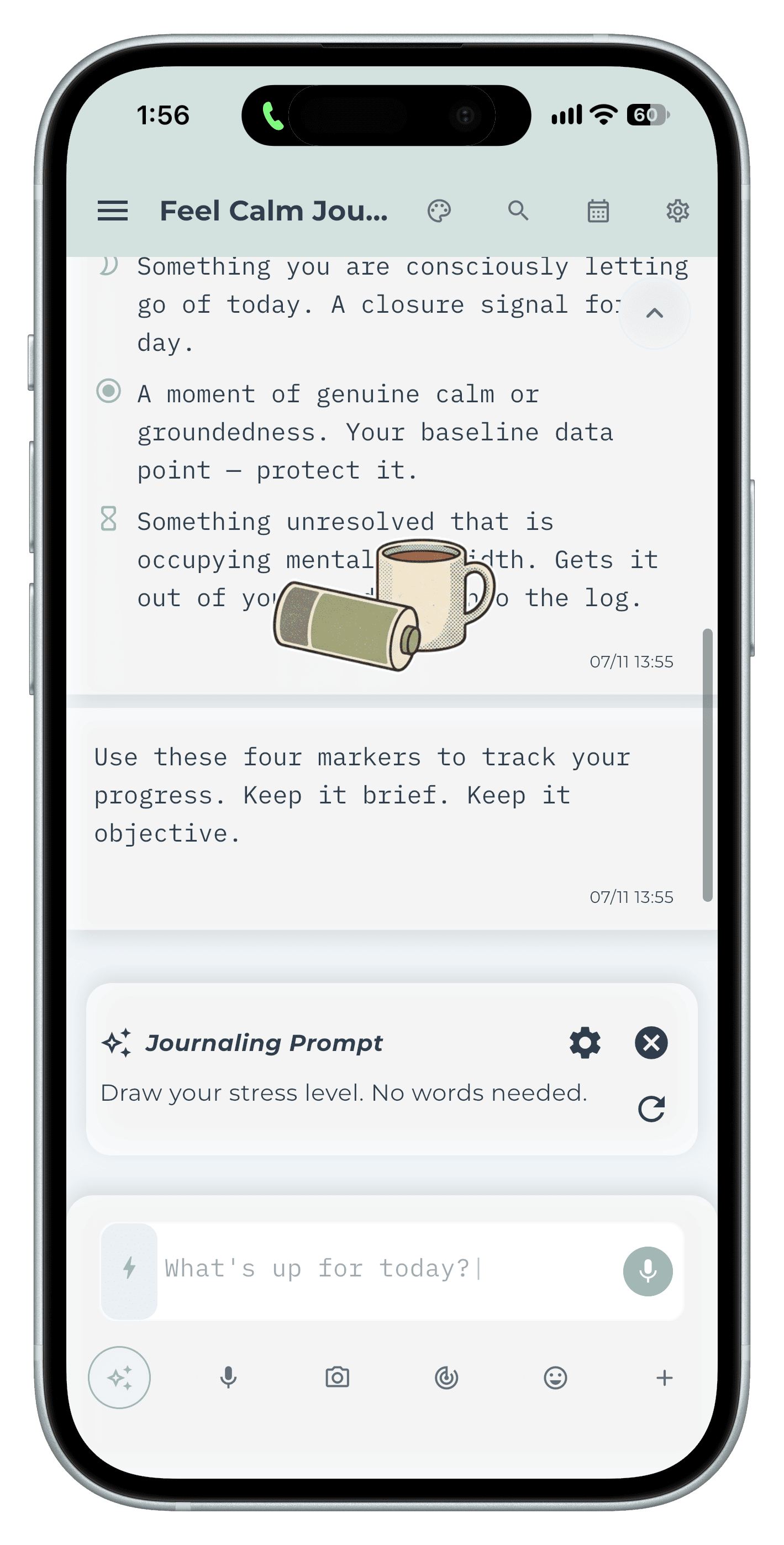
Step 5
Frequently asked questions
Can I draw on a photo in Penso?
Yes. Choose an image background on the drawing canvas and draw over it.
Are stickers free?
Many packs are free. Premium packs are part of Penso Pro.